A PVC event badge can match the approved artwork and still fail at check-in. The holder might reflect light over the code, or a perfectly readable code might belong to a different attendee. Before releasing bulk printing, ask your registration team to confirm both outcomes on the finished sample. The intended scanner should read the assembled badge under routine desk conditions, and the check-in app should return the expected test record and status.
Agree on what the QR code should contain
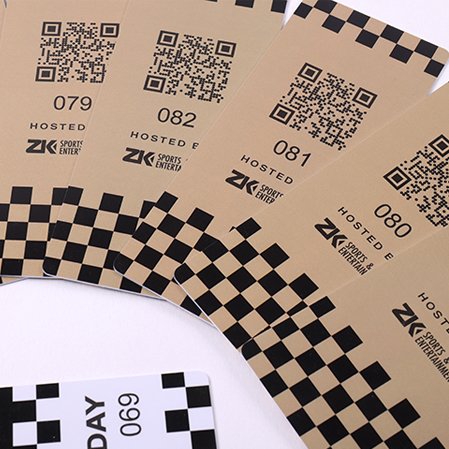
Ask your registration lead or platform provider which value the check-in app expects. It could be a platform-issued ticket code, a badge ID, or a URL in a specified format. Confirm who generates the codes and whether the print handoff should contain ready-to-place code images or source values. The custom PVC event badge listing describes unique QR codes and an Excel or CSV handoff for variable fields. Agree on the file format for your project before preparing the sample data.
Create a small set of dummy records in a test event or other isolated environment approved by your registration lead. Give each record a distinct expected payload and a visible sample reference. For example, a printed badge marked TEST-02 might be expected to return the dummy exhibitor record, while TEST-03 returns a dummy staff record. Keep that reference-to-record mapping in a separate test sheet so the person scanning can spot a row swap. If your platform uses identifiers with leading zeros, check that the handoff preserves them exactly.
Inspect the QR code on a finished physical sample
Request the sample at the intended print size, with the specified surface finish, hole or slot, and holder or clip fitted. Include each layout, finish, or attachment combination that could change the scan result. If the QR patterns in the run vary in density, include a representative dense example. Check that the printed squares are distinct and that holes, artwork, and trim stay clear of the code and its surrounding margin.
Allow a clear quiet zone four modules wide on all four sides of a standard QR code. A module is one square in the code grid. Keep logos, rules, and patterns outside that space. Dark modules on a plain white background are a practical starting point. Choose the printed size using the production artwork and the intended reader because usable size depends on the symbol, print quality, and reader. DENSO WAVE’s QR code area guide and printing FAQ explain these constraints.
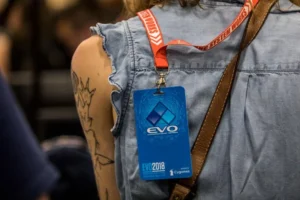
Slide the card into its holder and check it in the normal hanging position. Watch whether the card shifts behind a seam or frame, or whether the clip swings over the code. For help checking the fit of a standard-size card, see the CR80 badge holder compatibility guide.
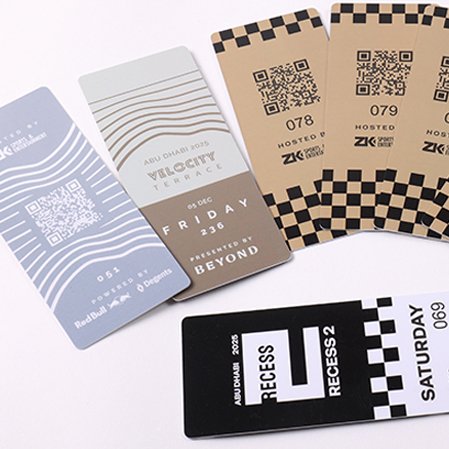
Scan at the check-in desk and compare the result
Use the device and app planned for the event. Select the test event and the same type of scan mode you plan to use on site. Present each assembled badge from the distance and angle staff normally use. Include the desk lighting conditions that matter to your setup, such as overhead lighting that reflects off a clear holder. A badge that reads only when laid flat or tilted away from the lights needs another test after the setup or sample is corrected.
Record the badge reference, expected record, device, app mode, and actual result for every test. Compare the result with your test sheet, including the ticket type or credential category if it matters at that desk. Test an already-used dummy credential if your event relies on repeat-scan detection. Decide what status to expect before the scan so a deliberate rejection does not get logged as a print defect. Eventbrite’s organizer instructions illustrate how a validation-only scan differs from an actual check-in.
Use the failure to decide what to correct
If the assembled badge fails to read, try the same card outside the holder under the same conditions. A card that reads outside the holder gives you a reason to check the seam, frame, position, or reflections first. If the code reads but the app shows the wrong person or rejects a credential that should be valid, ask the registration lead to compare the decoded value with the source row and verify the event and scan settings. When the app hides the raw value, use a decoder approved for the dummy data. Retest the finished assembly after the correction.
Release bulk printing against the approved version
Have the registration lead confirm the expected records and statuses. Have procurement record the approved artwork revision, sample identifiers, finish, holder or clip, scan results, and the version of the production data export before sending written release. If the print approval used dummy records, have the registration lead check the final production export for missing or duplicate values where uniqueness is required, then reconcile representative rows with the expected attendee records. A sample checks the setup. The export check catches problems introduced when production data replaces the dummy records.
QR event badge sample approval FAQ
Can I approve a QR badge from a PDF proof?
Use the PDF to check the code location, quiet zone, and visible fields, and to compare sample payloads where practical. Sign off on scanning after testing the printed card with its intended finish and attachment. A PDF displayed on a screen cannot reproduce a holder seam or reflection at the desk.
Is one printed badge enough for an individually coded order?
One badge can show how a particular layout fits and scans. Use multiple dummy badges to check record mapping. Include combinations that change the code placement, finish, holder, or pattern density, and compare each to its own expected record. Agree on any bulk inspection separately from the sample approval.
What if a phone camera reads the badge but the check-in app rejects it?
Record the app message and check whether the selected event, ticket type, and scan mode match the test plan. Compare the decoded value with the expected value from the platform. A phone camera reading the code demonstrates a decode on that device. The event app still needs to recognize that value and return the intended status before you release the job.
Request a quote for QR-coded PVC event badges. Include quantity by badge version, artwork, intended finish and holder or clip, the required payload format, a few dummy rows, and your sample approval deadline. Ask for a finished sample that your check-in team can test before you authorize bulk printing.